Get started
Setup
Your Oral Health Reports, your Feno Score and Amy, our oral health coach, are in the Feno App. Connect once and you're set.
Your Smarthandle 2 arrives charged, so you can brush first and connect later.
1. Attach the Mouthpiece
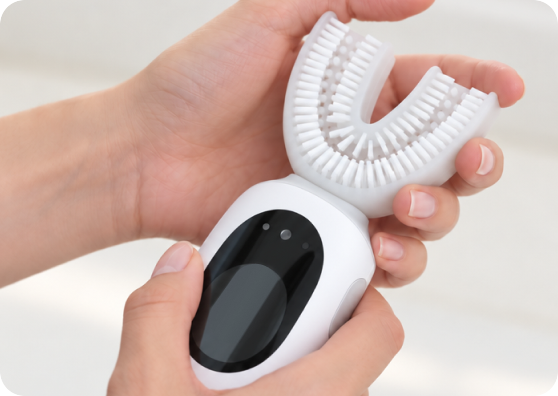
Push the TrueFit™ Mouthpiece onto the Smarthandle until it clicks. Front or back, either way is correct. Pull on it to check it's secure.
2. Turn it on
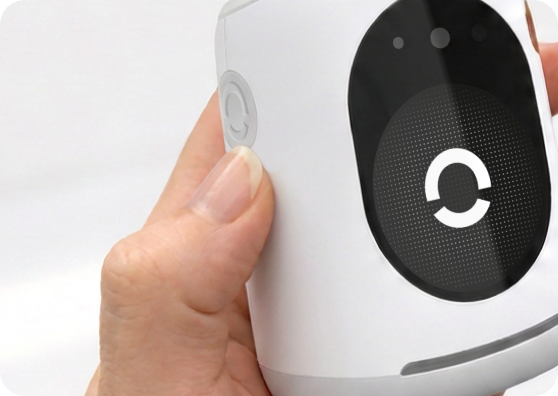
Hold the Main Button for 2 seconds. The Feno logo appears, followed by a welcome screen.
3. Download the Feno App
Scan the QR code on the welcome screen or in your Quickstart Guide, or search "Feno" in the App Store (iPhone) or Google Play (Android). Sign in or create an account.
The Feno App works on iPhone and Android. Some screens may look different on Android.
4. Pair your Smarthandle 2
Follow the steps in the app. When a pairing code appears on your Smarthandle, enter it in the app.
5. Choose Wi-Fi or phone connection
You can sync your Smarthandle over Wi-Fi or through your phone. Choose whichever suits you; brushing sessions and Scans sync either way.
- Wi-Fi: In the Feno App, pick your network and enter the password. Feno supports standard 2.4 GHz Wi-Fi. Sessions and Scans sync directly, and software updates download automatically. Dual antennas keep the connection steady in tiled bathrooms.
- Phone connection: Skip Wi-Fi. Sessions and Scans sync through your phone when it's nearby with the Feno App open. This is useful when you're traveling or on hotel Wi-Fi that needs a sign-in page.
Sessions recorded while the Smarthandle isn't connected are saved on it and sync the next time it connects. If it stays offline for a long time, the oldest sessions are replaced.
If the connection fails: hold the Main Button for 6 seconds to turn the Smarthandle off, then tap the Main Button to turn it back on and try again. See Restart.
6. You're all set
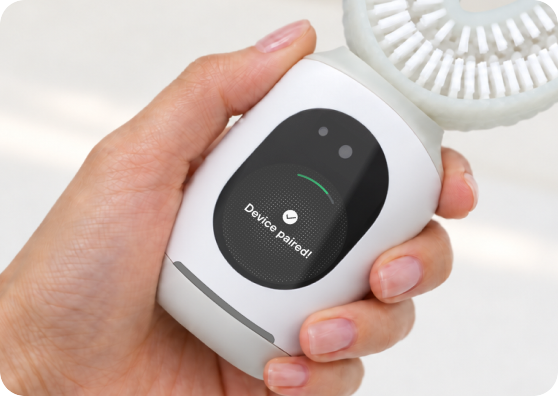
Your Smarthandle is connected. The display shows Device paired!, and the Feno App shows your Smarthandle as paired. You're ready to brush.
If Wi-Fi setup fails
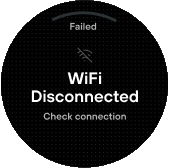
The display shows Try again.
Check that:
- The network name and password are correct
- Your network is 2.4 GHz (5 GHz-only networks are not supported)
- Your phone is on the same Wi-Fi network
- You're close to your router
You can also skip Wi-Fi and continue with the phone connection only.
Still stuck? Text us at (424) 501-2575.